Before we start: this is not a ranking of every distro. It is a way to compare them, followed by the one I recommend for daily work and the reasons for it.
I used Ubuntu for work, every day, for 4 years. I also did some distro hopping, and the daily experience felt mostly similar to me. When I compare two distros now, I look at three decisions: how I get software, how the system changes over time, and which desktop I work in.

Photo by Daniil Komov on Unsplash
Table of contents
Open Table of contents
- Which distros did I use?
- What sits on top of the shared base?
- Difference 1: the package manager
- Difference 2: the update model
- Difference 3: the desktop environment
- Where do X11 and Wayland fit?
- So why does one distro feel better than another?
- How do you pick your distro?
- Which distro do I recommend?
- Need more?
Which distros did I use?
Before Linux, I used Windows. For Linux, these three shaped my view:
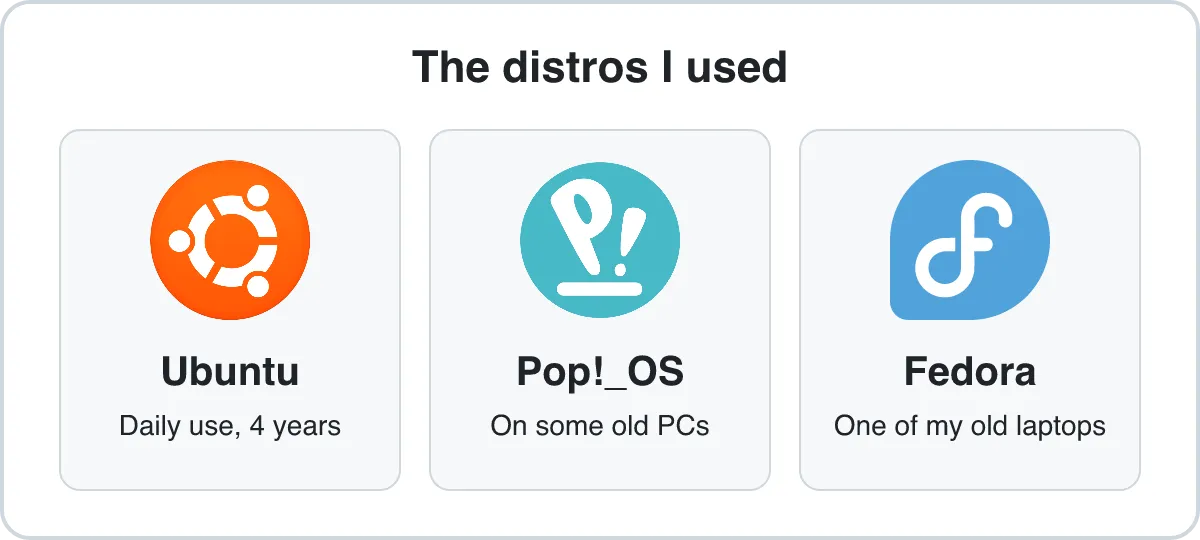
| Distro | Where I used it | Why |
|---|---|---|
| Ubuntu | Daily, for 4 years | Work |
| Pop!_OS | Some old PCs | Old hardware, curiosity |
| Fedora | An old laptop | Old hardware, curiosity |
I wanted to give old hardware a new life, and I was curious. Pop!_OS and Fedora felt mostly similar to Ubuntu in daily use. I did not run Arch, openSUSE or the atomic systems as my daily system, so read those parts as an explanation of how they work.
What sits on top of the shared base?
The distros here share the Linux kernel and much of the tooling around it. Your shell, Git and SSH habits move with you. The differences come from the choices on top of that base.
On a desktop system, it helps to separate the display system, the compositor or window manager, the desktop environment and the package manager.
This picture is simplified. The package manager sits outside the pyramid because it installs these parts and is not a graphical layer. The update model is not in the picture either, because it describes how the parts change.
Difference 1: the package manager
The package manager and its repositories decide which software you get, which version, and who maintains it. The command syntax is the small part.
| Family | Tool and format | Examples |
|---|---|---|
| Debian | APT, .deb | Debian, Ubuntu, Mint |
| Red Hat | DNF, .rpm | Fedora, RHEL |
| Arch | pacman | Arch, EndeavourOS |
APT: Ubuntu, Pop!_OS and their family
Debian uses APT, and so do the distros built on it, such as Ubuntu. Pop!_OS and Linux Mint build on Ubuntu.
Its practical advantage is reach. Many vendors publish Ubuntu instructions, so installing developer tools often starts with an apt command that you can take from their documentation.
You can add third-party repositories, such as a PPA (a personal software repository for Ubuntu). Add one only if you trust its owner, because its packages can run with full system rights during installation. Each extra source is also one more thing to review before a version upgrade.
DNF: Fedora and its family
Fedora uses DNF, and you also find it on Red Hat Enterprise Linux and related server systems. If you know APT, the daily commands are quick to learn.
The part that costs time is naming. A development library can end in -dev on Ubuntu and in -devel on Fedora. Picture a project README that lists Ubuntu packages only. On Fedora, you must find the matching names before the build works. dnf search helps with that.
Fedora keeps its main repositories focused on free and open source software. For some extra software, such as certain media codecs, users add RPM Fusion (a community repository).
Pacman: Arch and its family
Arch Linux and distros based on it, such as EndeavourOS and Manjaro, use pacman. Arch does not support partial upgrades, so you upgrade the full system and do not update one package against an old base.
Arch users also have the AUR (Arch User Repository), a large collection of build recipes that the community writes. It is not an official repository. Read a recipe before you build it, the same way you read a script before you run it.
What about Flatpak, Snap and AppImage?
These formats work across distros, so they make the first difference smaller for desktop apps.
| Format | What to know |
|---|---|
| Flatpak | Shared runtimes and permissions. Flathub is its best known store |
| Snap | Comes from Canonical. Ubuntu includes it |
| AppImage | One executable file, no classic installation |
The trade-off is that these apps can use more disk space, and some need extra permission changes to reach your files. For system tools and libraries, you still depend on the package manager of your distro.
How do you choose a package manager?
Do not choose by command length. Choose by the answer to these questions:
- Does the software that you need for work give official packages for this system?
- Does your team or your server use the same family? If your servers run Ubuntu, an Ubuntu laptop lets you test the same package names.
- When something breaks, can you find help for it?
Why do I care about this one?
On Linux, I got used to one default tool that manages installed apps and packages. When I moved to macOS, I looked for something similar and found Homebrew. Apps on macOS can come from different places, such as the App Store, so I wanted one tool for my packages. I did not use Homebrew on Linux, although I know it is available there.
That habit came with me. My feelings about the move to macOS need their own article.
Difference 2: the update model
The second decision is how the system changes under you. The three terms you meet are point release, rolling release and atomic updates.
Point release: planned versions
A point release distro publishes numbered versions. Inside one version, you mostly get security patches and bug fixes. The big changes wait for the next version.
Ubuntu ships a new release every April and October. Every two years, the April release is an LTS (long-term support) version with five years of standard support. The releases between them get nine months. Fedora also releases about twice a year, and each version gets updates for about 13 months. Fedora moves to new software sooner than an Ubuntu LTS does.
The gain is that you know when the big changes arrive. The cost is that some apps and libraries in the official repositories get older while you stay on one version.
Picture a work laptop one day before a release deadline. You do not want a new version of your desktop or compiler that morning. A point release lets you plan the upgrade for a quiet week.
Before a version upgrade, back up your files, read the release notes, and turn off or check your third-party repositories. And do not stay on a version after its support ends, because the security fixes stop.
Rolling release: always moving
A rolling release has no big version jumps. New packages arrive when the distro is ready to ship them. Arch Linux and openSUSE Tumbleweed work this way.
The gain is fresh software: new kernels, drivers and developer tools reach you early. This can help when your hardware is very new.
The cost is attention. Changes arrive all the time, and one of them can need a manual step. Rolling does not mean broken, but it does mean that you take part in the maintenance.

If you pick a rolling distro, use this short checklist:
- Update often, so each upgrade stays small.
- On Arch, read the news on the official website before you upgrade.
- Keep a backup and a live USB (a USB drive that can start a Linux system).
- Do not start a big upgrade right before an important meeting.
Atomic: all or nothing
Atomic describes how the system applies an update. The update succeeds as a whole, or the system stays as it was. You do not get a half-updated system after a power cut.
Many atomic distros keep the base system read-only and keep the previous version. If the new one causes a problem, you start the old one again. Fedora Atomic Desktops (such as Silverblue and Kinoite) work this way. SteamOS on the Steam Deck also updates a read-only system image. NixOS reaches a similar goal in a different way: you describe the system in configuration files, and you can start an earlier generation.
Atomic is not the opposite of point release or rolling. It answers a different question. Point and rolling tell you when new versions arrive, and atomic tells you how the system installs them. A distro can combine them. Fedora Silverblue, for example, has numbered releases and atomic updates.
The cost is a change in habits. You usually install desktop apps as Flatpaks, and you do development work inside containers with tools such as Toolbx or Distrobox. You can add some packages to the base system, but that is not the first option. Also remember that a system rollback is not a backup of your files.
Choose atomic if you want a system that is hard to damage and you accept its way of installing software. If you like to change system files by hand, a traditional distro will feel easier.
The three models side by side
| Model | You get | You accept |
|---|---|---|
| Point release | Big changes on planned versions | Upgrade days |
| Rolling | New software early | Regular care |
| Atomic | The old system as a way back | New install habits |
Examples: Ubuntu and Fedora Workstation use point releases. Arch and openSUSE Tumbleweed roll. Silverblue, Kinoite and SteamOS are atomic. With a traditional point or rolling system, plan your own way back with backups or system snapshots.
Difference 3: the desktop environment
This choice changes how your computer feels more than the other two do. These are seven desktops that you will meet:
| Desktop | Character | Seen on |
|---|---|---|
| GNOME | Focused, few options | Ubuntu, Fedora |
| KDE Plasma | Very configurable | Kubuntu, Fedora KDE |
| COSMIC | Tiling built in, young | Pop!_OS |
| Cinnamon | Classic layout | Linux Mint |
| Xfce | Light, traditional | Xubuntu |
| LXQt | Light, Qt based | Lubuntu |
| Budgie | Clean, classic | Ubuntu Budgie |
This is why two distros can look like different worlds while they share a package manager. It also explains the opposite case, where two distros with the same desktop look almost the same.
You are not locked to one desktop. Most traditional distros let you install another one. If you are new to Linux, I suggest a different path: pick an edition that ships with the desktop you want. Two desktops on one system can leave you with double apps and mixed settings.
GNOME: simple and focused
GNOME is the default desktop of Ubuntu and Fedora Workstation. Ubuntu changes it with a dock on the side and its own theme, while Fedora stays close to the original design.
It gives you a clean screen, workspaces, and one overview where you search for apps and move between windows. It has fewer options in its main settings. For more changes, people use extensions, and an extension can stop working after a GNOME upgrade.
Try GNOME if you like a calm screen and you are happy to learn its workflow. If you expect it to behave like Windows, the first days can feel strange.
KDE Plasma: change what you want
KDE Plasma starts with a layout that a Windows user will recognize: a panel at the bottom, an app menu and a system tray. Then it lets you change a lot, including panels, widgets, shortcuts and window rules.
The gain is control. The cost is that many options can distract you. Fedora has a KDE edition, Kubuntu is the Ubuntu flavor with Plasma, and many other distros offer it.
Try Plasma if you often think “I wish I could move this button”. You can keep the defaults and change one thing at a time when it bothers you.
COSMIC: the new one
COSMIC is the desktop from System76, the company that makes Pop!_OS. Older Pop!_OS versions used a customized GNOME. System76 then wrote its own desktop in the Rust programming language, and COSMIC is the default in Pop!_OS 24.04 LTS.
It brings window tiling (the system places windows side by side for you) and workspaces into the desktop itself. This can suit a developer who keeps an editor, a terminal and a browser open together.
COSMIC is much younger than GNOME and Plasma. Before you move a work machine to it, make sure that the features you depend on work well, for example screen sharing and your monitor setup.
Cinnamon, Xfce, LXQt and Budgie
Cinnamon comes from the Linux Mint project and keeps a classic layout. Xfce and LXQt are lighter, and people often pick them for older or weaker hardware. Budgie is another option with a clean, classic style.
If you want to bring an old PC back to life, put a lighter desktop on your test list. Test it on the real machine, because the browser and its open tabs can use more memory than the desktop.
What happens when you reshape a desktop?
I was keen to make my Ubuntu look like macOS 26, and I found a way to do it with open source work. Some of those settings may be what made my laptop feel bad and slow. I did not measure it or find which setting was responsible, so treat it as a suspicion.
If you want to try a heavy visual change, use this order:
- Take a system snapshot or a backup first.
- Note how the machine behaves before the change.
- Add one theme or extension at a time, then use it for a few days.
- Keep a list of what you installed, so you can remove it.
- If the machine feels slower, undo the latest change and compare.
Where do X11 and Wayland fit?
X11 is the long-used window system. Wayland is the newer protocol that major desktops and distros moved to, or are moving to. With Wayland, the compositor also does the job of the display server. With X11, the display server and the window manager are separate programs.
| Topic | X11 | Wayland |
|---|---|---|
| Design | Separate server and window manager | Compositor does both jobs |
| App access | Apps can observe each other | Apps are more isolated |
It matters when a tool records your screen, controls other windows or sets global shortcuts. If one of your important tools has this job, test it on a live USB first. Your distro and desktop usually pick the default, so I do not count it as a fourth main difference.
So why does one distro feel better than another?
The three layers explain most of the feeling, but not all of it. Distro teams also choose the default apps, the installer, the theme, the driver setup and the documentation.
These details can matter a lot on your hardware. One distro can set up your graphics card or Wi-Fi with less work than another. This is where “less important than the three” does not mean “not important”. No table can tell you that your laptop will wake from sleep in the right way. Only a test can.
Support and community matter too. A small distro that one or two people maintain can be a fun experiment. For your main machine, look at how often it ships security updates and how easy it is to get help.
How do you pick your distro?
Answer three questions in this order. You will get a short list to test, and that is enough.
Question 1: what software must work?
Write down the apps and tools that you cannot work without. Then open their official download or install pages and see which systems they support.
If most of them give .deb packages and Ubuntu instructions, start in the APT family. If your servers belong to the Red Hat family, Fedora lets you practice with DNF. Fedora is not the same system as your server, so test server builds on the server’s own distro or in a matching container.
If an app that you need does not run on Linux at all, no distro choice fixes that. Find this out before you wipe a disk.
Question 2: how do you want updates?
- ”I want to plan big changes”: pick a point release. If you want to wait longer between upgrades, look at an LTS.
- ”I want new software early, and I accept maintenance”: pick a rolling release.
- ”I want an easy way back after a bad update”: pick an atomic system.
Be honest about your time. A rolling system can be a great teacher on a spare machine. On a machine that pays your salary, choose the amount of surprise that you can handle.
Question 3: how should the desktop feel?
- A clean and focused screen: try GNOME.
- A familiar layout with many options: try KDE Plasma.
- Built-in tiling and a young project that is growing: try COSMIC.
- A classic layout or an older machine: try Cinnamon, Xfce or LXQt.
Your short list
| If you want | Put these on your test list |
|---|---|
| Planned upgrades and many Ubuntu guides | Ubuntu LTS (GNOME) or Kubuntu LTS (Plasma) |
| Newer software with planned versions | Fedora Workstation (GNOME) or Fedora KDE |
| COSMIC on an APT system | Pop!_OS |
| A classic desktop on an APT system | Linux Mint (Cinnamon or Xfce) |
| Rolling updates and to build the system yourself | Arch Linux |
| Rolling updates with a more ready setup | openSUSE Tumbleweed |
| Atomic updates on a desktop | Fedora Silverblue (GNOME) or Kinoite (Plasma) |
Test before you install
A live USB lets you try many distros without installing them. Not all of them offer a live mode, so check the download page. Take two names from your list and test these on your real machine:
- Connect to Wi-Fi and pair your Bluetooth devices.
- Play sound and test the microphone and camera.
- Connect your external monitor.
- Close the lid, wait, and open it again, if the live system allows it.
- Open the apps that you need, or find how to install them.
- Use the desktop for your normal tasks for at least half an hour.
A virtual machine is also good for learning the desktop and the package manager. It does not test your Wi-Fi, sleep or graphics in the same way. Some hardware behaves differently after a full installation, so keep a backup of your files before you install.
Which distro do I recommend?
For a developer, or anyone who wants less hassle and less setup, I recommend Ubuntu as the daily driver, in its LTS version. You get widely supported packages, and it is the one I used for work for 4 years. The experiment with the macOS look is also a reminder to keep the base simple.
Do not take only my word for it. These points come from official pages that I read in November 2026.
How long is it maintained?
Canonical publishes an LTS every two years. The release cycle page lists 5 years of standard security maintenance for packages in the Main repository. For 26.04 LTS, that runs to May 2031. You know the date before you install.
Can you get longer coverage at home?
Ubuntu Pro extends coverage to 10 years for the Main and Universe repositories, and a paid legacy add-on goes further. The release cycle page says that Pro is free for personal use on up to five machines. The Universe part matters, because the standard 5 years cover Main only.
Is the hardware tested?
Canonical runs a certified hardware catalogue for laptops, desktops and other devices. Its page describes more than 500 compatibility tests, including wireless, Bluetooth, audio and power management. This applies to the listed systems, so search for your exact model.
Do other vendors support it?
| Source | What it says |
|---|---|
| Docker | Ubuntu is a supported platform on all five listed architectures |
| Microsoft | Ubuntu is the default distro that WSL installs |
Docker supports other distros too, Debian and Fedora among them. Its page also says that it does not test or verify installation on derivative distros. The WSL default does not prove anything about a laptop, but it shows which distro a Windows developer gets without choosing.
What do these pages not prove?
They show maintenance periods, tested models and vendor support. They do not promise that your machine will have no problems, and they do not show that Ubuntu is safer than each other distro. You still need updates, backups and care with third-party repositories.
When should you choose something else?
| Your need | Look at |
|---|---|
| Newer software, planned versions | Fedora |
| Rolling updates | Arch or Tumbleweed |
| Atomic updates | Fedora Silverblue or Kinoite |
My pick for low hassle is Ubuntu LTS. Check your hardware and your must-have software before you install it.